
 Culture and entertainment
 Supermarket
 Business and services
 Collectibles and art
 Home & garden
 Kids
 Electronics
 Computers
 Automotive
 Tools
 Fashion
 Sports & travel
 Phones & accessories
 Health & beauty
Thin laptops have fewer and fewer connectors: often just two USB-C ports and a headphone jack. When you need to connect a monitor, a flash drive, a network cable and a charger at the same time, a USB-C hub or a laptop docking station helps. We explain how they differ, which ports are worth having and when a plain USB hub is enough.
Hub, docking station or adapter?
These devices are often confused, although they serve slightly different purposes.
- An adapter turns one connector into another, for example a USB-C to HDMI adapter for connecting a monitor. You will find an overview of such adapters in the accessories – adapters section.
- A USB-C hub is a small, portable splitter with a few ports that you connect to the laptop with a single cable.
- A docking station stays on the desk, has more connectors, often mains power, and lets you connect the whole setup with one cable: monitor, keyboard, network and charging.
Which ports matter most?
HDMI, DisplayPort and a 4K monitor
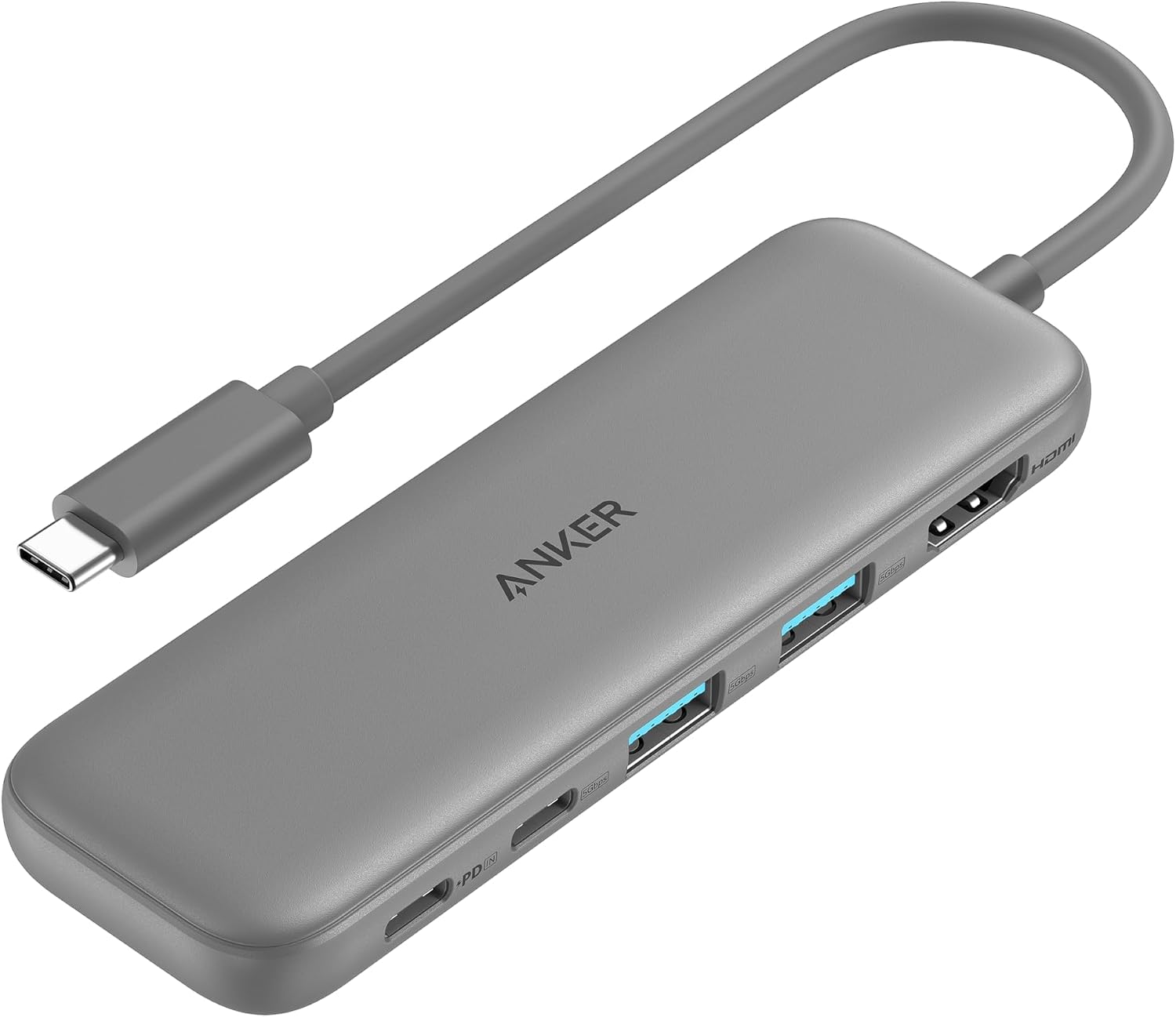
If you work on an external screen, check how many monitors the device supports and at what resolution. A "HDMI 4K" description is sometimes limited to 30 Hz, and smooth 60 Hz picture requires the right standard. Examples from our range: the Anker 332 5-in-1 USB-C hub with HDMI 4K, two USB-A ports and 85 W PD, and the Anker 7-in-1 USB-C hub with HDMI 4K 60 Hz and a card reader. For a bigger multi-monitor setup there is the Anker PowerExpand 8-in-1 with dual HDMI 4K, and for work with DisplayPort the Anker 565 11-in-1 model.
Power Delivery – charging a laptop through a hub
The Power Delivery standard lets you plug a charger into the hub, which passes power on to the laptop and powers other devices at the same time. Check how many watts the hub passes through and compare that with the power of your laptop charger. If the hub passes 85 W and the laptop needs 100 W, charging will be slower or may not work under heavy load.
Ethernet and card reader
A network cable is more stable than Wi-Fi during video calls and large file transfers. You will find an RJ45 port in the Anker 555 PowerExpand 8-in-1 and in the simpler Iczi IZEC-A88 with 10/100 Mb/s RJ45. An SD and microSD reader is useful for photographers and people who use action cameras.
When to choose a laptop docking station?
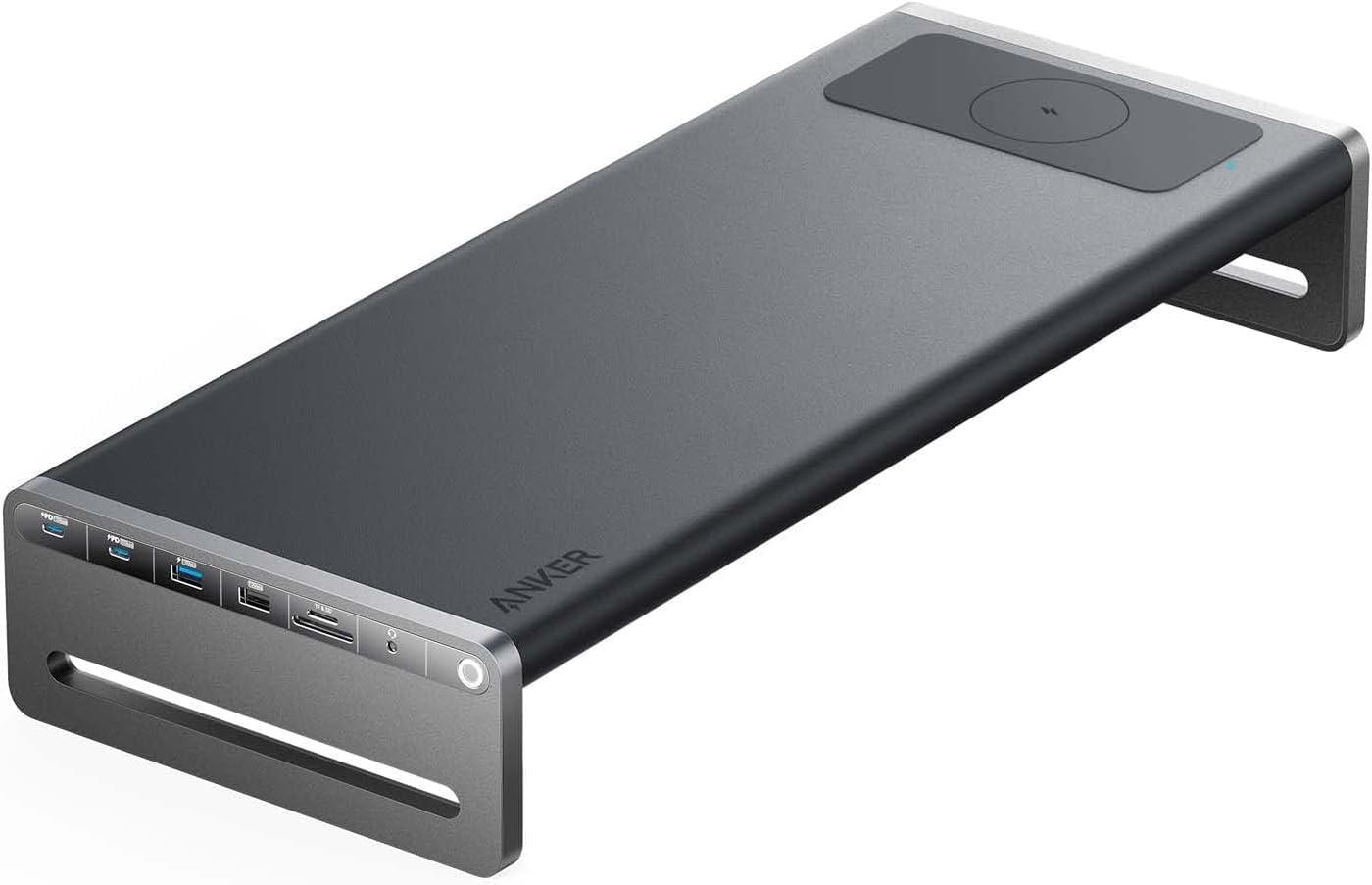
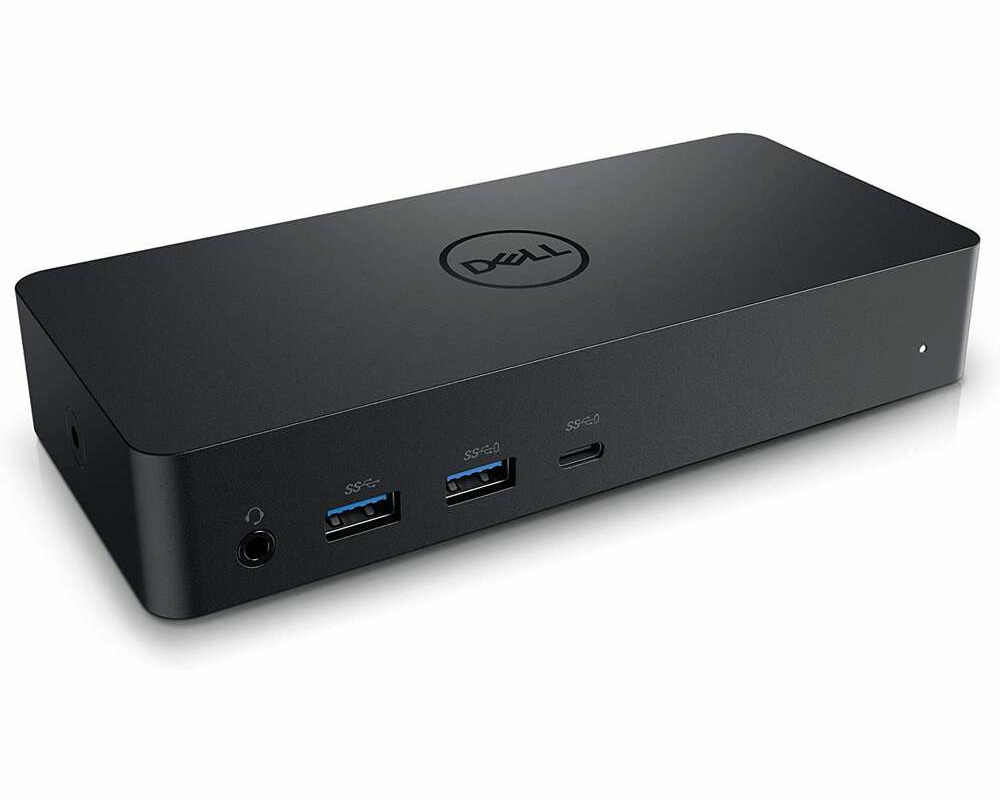
A docking station is for you if your laptop always sits on the same desk. You get one connector instead of many cables, and often extra power as well. The Dell D6000 USB-C HDMI dock suits business laptops well. For a desk where you also charge your phone, the Anker 675 – 12-in-1 docking station with wireless charger is a good choice, and for a laptop stand there is the BENFEI 6-in-1 with stand. The full selection is in the laptop docking stations section.
A plain USB hub – when is it enough?
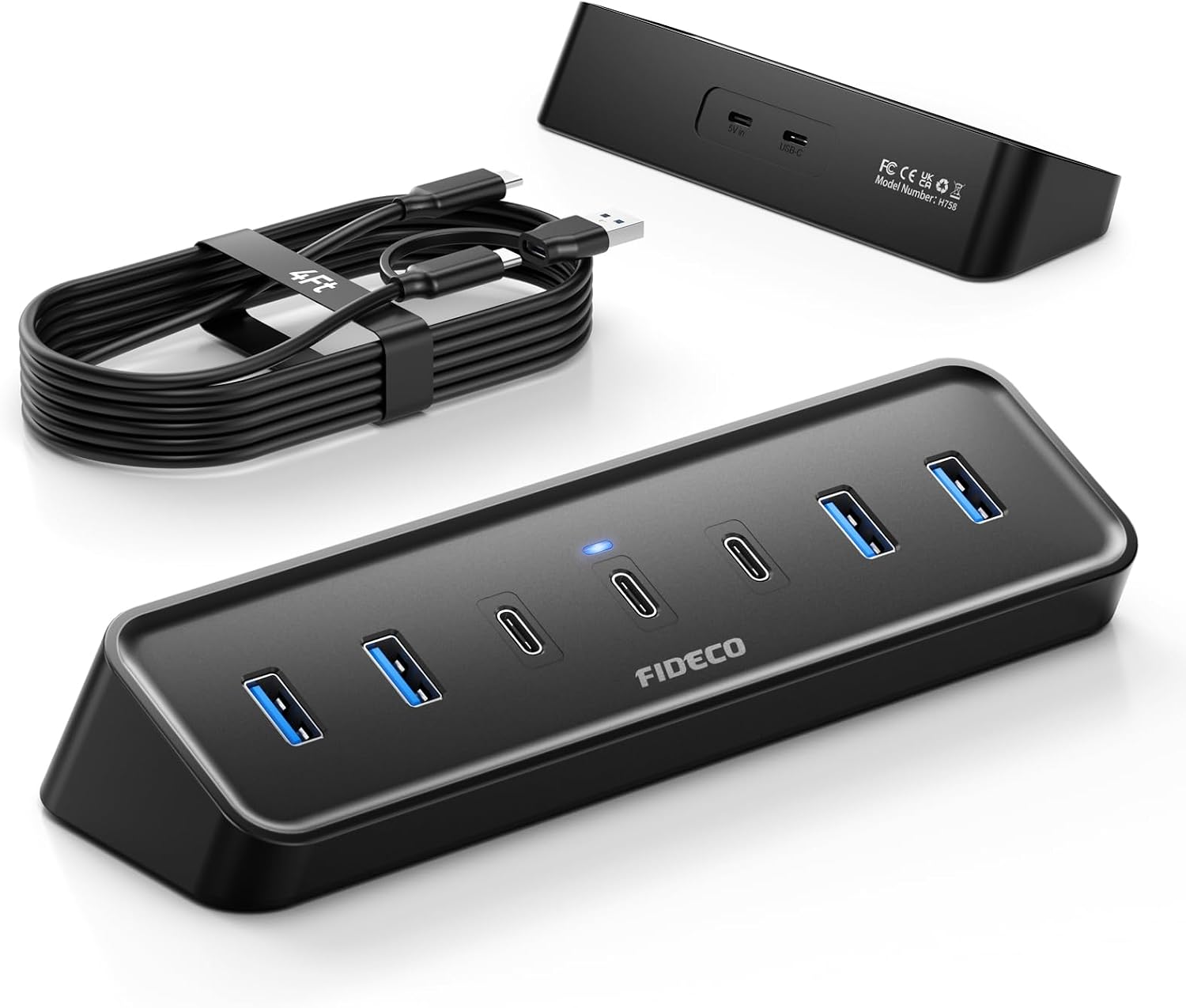
If all you need is more USB sockets for a flash drive, a mouse and a disk, a USB splitter without video and network is enough. Passive models draw power from the computer, so with several external drives a hub with its own power adapter is better. An example is the FIDECO H758 – 7-port USB 3.0 hub with four USB-A and three USB-C ports or the AmazonBasics – USB 3.0 hub with 7 ports. You can see all the splitters in the USB hubs category, and video and network adapters in the computer adapters section.
What to look at before buying
- Connector on the laptop – make sure the USB-C port supports video and charging, not just data transfer.
- Port speed – USB 3.0 and newer are faster than USB 2.0; external drives and memory will benefit from the bandwidth.
- Cable and housing – an aluminium housing dissipates heat better, and a longer cable makes it easier to position the hub.
- Number of monitors – not every hub can drive two screens; check the description before you buy.
How to set up a one-cable desk?
A practical setup looks like this: you connect the monitor to the dock or hub via HDMI or DisplayPort, the keyboard and mouse to the USB-A ports, and the power supply to the PD socket. Only one USB-C cable then leads to the laptop, carrying video, data and power. When you get to the office, you plug it in and immediately have a full workstation. Such a configuration reduces wear on the laptop's port and makes it easier to keep the desk tidy.
When travelling, a small hub that fits in a bag pocket works better. For work on the go, take a hub with HDMI and a card reader, and leave the larger dock at home. If you use both places, you can have two devices and swap them depending on the situation. Also remember to use good cables for longer connections, because a cheap cable can limit resolution and charging power.
Frequently asked questions
Does a USB-C hub get hot during use?
Yes, that is normal, especially with 4K video and fast charging. Large, multifunction models have housings designed to dissipate heat.
Will a hub work with every laptop?
With laptops that have a USB-C port with video output or Thunderbolt. Older USB-C ports are for data and charging only, in which case video needs a different adapter.
Post comments (0)